
TLauncher Skins let Minecraft players change the look of their game character. For example, a skin can change the clothes, colors, face, and overall style of the character. However, it does not change the Minecraft world or game rules. Players can use ready-made skins or create their own designs. Before using a skin, check its format and model type. In addition, make sure it works with your Minecraft version and current setup. This guide explains how skins work, how to change them, how to use custom skins, and how to fix common skin problems.
What Are TLauncher Skins?
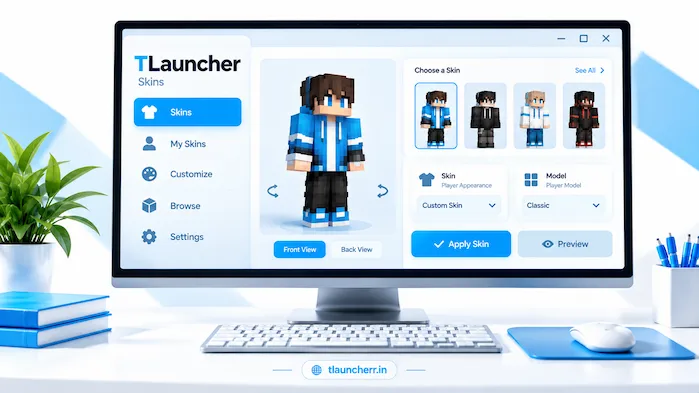
TLauncher Skins are Minecraft character designs that change how your player looks in the game. In simple terms, a skin uses an image that fits around the Minecraft character model. As a result, skins can have different colors, clothes, faces, and themes. You can choose a simple design or a more detailed one. Before using a skin, check its file type and model. This way, the skin is more likely to appear as expected in Minecraft.
You can learn more about the launcher on our TLauncher homepage.
TLauncher Minecraft Skins
TLauncher Minecraft Skins can give your character a new look. For example, you can find simple designs, themed skins, and custom creations. However, a skin only changes the player model. It does not change your Minecraft world or game rules. Therefore, you should choose a skin that matches your Minecraft version and setup. Before applying it, check the skin carefully to help avoid display problems.
Minecraft Skin Format
Minecraft skins use a set image layout. The image contains different parts of the player model. These parts include the head, body, arms, and legs. A skin must use a supported format and layout. A damaged file may not load. A wrong layout can also make the skin look strange. Check the skin format before you add it to Minecraft.
Steve and Alex Skin Models
Minecraft supports different player models. Steve and Alex are two common models. Their arm shapes are different. This changes how the skin fits the character. Choose the correct model when you use a skin. A wrong model can make the arms look different from the original design. Check the preview before you save the skin.
How TLauncher Skins Work
A Minecraft skin works as a texture for your player character. The game places the skin texture around the character model. This changes the look of the character while you play. The way a skin appears can depend on your Minecraft version and account setup. Server settings can also affect skin display. Check your current setup if a skin does not appear as expected.
Skin Selection
Skin selection lets you choose the design for your character. Open the available skin settings and check the designs. Pick a skin that matches your preferred style. If custom skins are supported, you can also add your own design. Check the preview before applying the skin. This can help you find layout or color problems.
Skin Visibility
A skin may not appear the same in every Minecraft setup. Your account settings can affect skin display. Some servers may also use their own skin systems. A skin can work in one place but look different in another. Check the server rules if your skin does not appear during multiplayer.
How to Change TLauncher Skin
Changing a skin starts with choosing a compatible design. You can use an existing skin or a custom design if your setup supports it. Open the skin settings and select the design. Check the player preview before saving it. Then start Minecraft and check your character. If the old skin still appears, review your settings and account.
Open Skin Settings
First, open the skin or profile settings. The exact location can change between launcher versions. Look for an option related to skins, profiles, or character settings. Open that section and check the available options. If you cannot find the setting, check the current instructions for your launcher version.
Select a Skin
Choose the skin you want to use. Check the player preview before saving it. Look at the face, arms, body, and legs. Make sure the skin fits the selected player model. If the preview looks correct, save or apply the skin.
Apply the Skin
After selecting the skin, apply the change. Start Minecraft and enter a world. Look at your character from different angles. Make sure the skin appears correctly. If you still see the old design, close and reopen the game. You can also check your account and skin settings.
TLauncher Skin Installation
TLauncher skin installation can depend on your current Minecraft setup. Some setups may offer skin controls in the launcher. Others may use account-based skin settings. The exact steps can also change between versions. Use the method supported by your current setup. Do not follow old steps if the current interface looks different.
Prepare the Skin File
Check the skin before you use it. Make sure it is an image file with the correct layout. The design should match the Minecraft skin format. Avoid files with strange extensions. A normal skin should not need an extra program to open it. Keep a copy of your original skin if you plan to edit it.
Upload the Skin
If your setup supports custom skins, select the skin file from your device. Upload or import the image through the available skin option. Check the preview after the file loads. If the skin looks wrong, check the image format and player model. Fix the file before applying it.
Save the Skin
Save the skin after you finish the setup. Open Minecraft and check the character. Look at the front, back, arms, and legs. Make sure all parts look correct. If something is missing, check the skin file again. You may need to choose a different model.
TLauncher Custom Skins
TLauncher custom skins let players create a personal Minecraft look. You can change colors, clothes, faces, and other parts of the design. You can also create a skin from an empty template. Another option is to edit an existing design when you have permission to do so. Always check the usage rights of a skin before editing or sharing it.
Create a Custom Skin
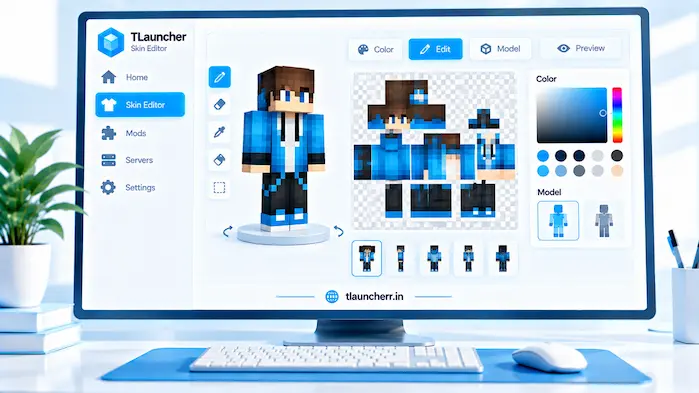
You can create a custom skin with a Minecraft skin editor. Start with a correct skin template. Add colors and details to each body part. Keep the design simple enough to see during normal gameplay. Use the preview to check your work. Save the final image in a supported format.
Edit an Existing Skin
You can edit an existing skin when its usage terms allow it. Change the colors, clothes, face, or other details. Keep the original skin layout in place. Do not move parts to random areas of the image. Save a new copy after making your changes. This keeps the original file safe.
TLauncher Skins Download
TLauncher Skins Download searches can show many websites with Minecraft skin files. Not every site is trustworthy. Check the source before downloading a skin. A normal skin should be an image file. Be careful with sites that show many fake download buttons. Do not install extra software just to get a skin.
For general download and installation steps, see our TLauncher Download guide.
Check the Skin Source
Use a source that clearly shows the skin design. The page should explain what you are downloading. Check the file type before you download it. Avoid pages that hide the real download behind many buttons. Do not use a site that asks you to install unknown software for a simple skin file.
Check the File
Check the downloaded file before opening it. Make sure it has the expected image format. Do not open an executable file because its name contains the word “skin.” A skin image should not need to run as a program. Delete files that look suspicious. You can also scan unknown files with trusted security software.
TLauncher HD Skins
TLauncher HD Skins usually refers to Minecraft skins with more visual detail. The term can mean different things on different websites. Minecraft and the current skin system still control which texture formats work. A skin advertised as HD may not work in every setup. Check the supported format before using one.
HD Skin Compatibility
Check the Minecraft version before using a detailed skin. Make sure the skin format is supported. A skin with the wrong size may not load correctly. It may also show missing parts. Standard supported skins can be easier to use across different setups. Always check compatibility first.
Detailed Skin Designs
Detailed skins can use more colors and small patterns. Some details may be hard to see during normal play. Keep the main features clear. Strong colors can make the design easier to see. Use the preview to check the final look before applying the skin.
TLauncher Skin Editor
A TLauncher skin editor can help you make or change a Minecraft skin. A skin editor usually shows the character model and skin texture. You can change colors and add small details. Some editors also provide a 3D preview. Choose an editor that supports the Minecraft skin format you need.
Skin Editing Tools
A skin editor may include a pencil, color picker, eraser, and zoom tool. These tools help you work on small parts of the skin. Zoom is useful when editing the face or hands. Save your work often while editing. Keep a backup of the original design before making large changes.
Preview the Skin
Use the preview before saving your final skin. Check the front, back, sides, arms, and legs. Look for missing colors or misplaced details. The preview can also show if the player model is wrong. Fix these issues before applying the skin in Minecraft.
TLauncher Skin Settings
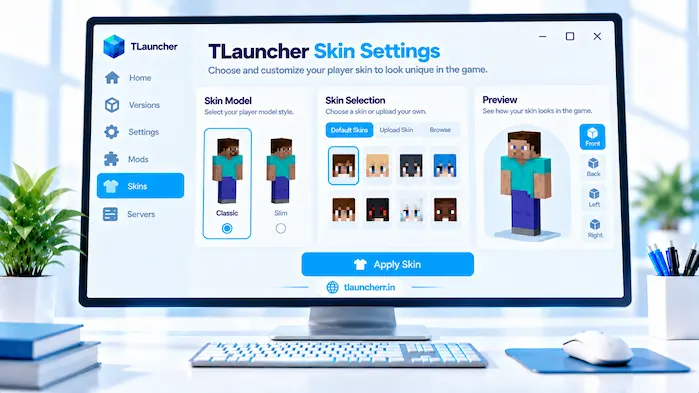
TLauncher skin settings can vary between launcher versions. Available options may include skin selection, player model, preview, and account settings. The exact layout may change over time. Check the settings in your current launcher. This is better than using instructions made for an older version.
Skin Model Settings
Choose the player model that matches your skin. Steve and Alex models have different arm shapes. A wrong model can make the skin look unusual. Check the preview after changing the model. Save the setting when the skin looks correct.
Account and Skin Settings
Some Minecraft skin features may connect to your account. Make sure you are using the correct account when checking a skin. Account settings can affect how a skin appears. If the skin does not show, check the active account first. Then review the skin settings.
TLauncher Skins on Android
TLauncher Skins on Android depend on the launcher and Minecraft setup used on the device. Mobile users may need to find the skin file through Android storage. They may also need to give the app access to the required files. The exact steps can differ from PC. Check the Android setup before importing a skin.
Android Skin Files
Keep your skin files in a folder that is easy to find. Check the file type before you import it. Android may ask for file access when you select a skin. Only allow the access needed for the task. Avoid giving an app extra permissions without a clear reason.
Mobile Skin Controls
Editing a skin on a phone can be harder because the screen is smaller. A skin editor with zoom can make this easier. Use the preview to check small details. Make sure the final skin fits the selected player model. Then save and apply the design.
TLauncher Skin Problems
Skin problems can have several causes. The file may use the wrong format. The player model may be wrong. Account settings can also affect the skin. Some servers may use their own skin rules. Check each possible cause one at a time. This makes the problem easier to find.
Skin Is Not Showing
Check that the skin was saved and applied. Make sure the correct account is active. Check the Minecraft version and player model as well. Restart the launcher and Minecraft if needed. If the problem remains, try a different supported skin.
Skin Looks Incorrect
A wrong model can make a skin look strange. Check whether the skin was made for the selected model. Also check the image layout. Missing colors or body parts can point to a damaged file. Try another skin to see if the issue is limited to one design.
Skin Does Not Work on a Server
A server can have its own rules for skins. Some servers may use their own player appearance system. A skin that works in single-player may not appear in the same way online. Check the server information before changing your local settings. This can help explain why the skin looks different.
TLauncher Skins vs Minecraft Skins
TLauncher skins and Minecraft skins describe the same basic idea: changing the player’s appearance. Minecraft provides the skin system used by the game. The launcher or account setup may provide ways to select or manage the skin. The exact method depends on the current setup. Check compatibility before using a skin from another source.
TLauncher Skins FAQs
What Are TLauncher Skins?
TLauncher Skins are Minecraft designs that change character appearance.
How Do TLauncher Skins Work?
They apply a texture to the Minecraft player model.
How Do I Change TLauncher Skin?
Open the skin settings and select a supported design.
Can I Use Custom TLauncher Skins?
Custom skins can work when the current setup supports them.
Where Can I Download TLauncher Skins?
Use a trusted source that provides supported Minecraft skin files.
What Format Do TLauncher Skins Use?
Minecraft skins use supported image-based texture formats.
Can I Edit TLauncher Skins?
You can edit skins with a compatible Minecraft skin editor.
Can I Use TLauncher Skins on Android?
Android skin support depends on the launcher and Minecraft setup.
Why Is My TLauncher Skin Not Showing?
Check the skin, account, model, and Minecraft version settings.
Why Does My TLauncher Skin Look Wrong?
The model or skin layout may not match your setup.
Conclusion
TLauncher Skins give Minecraft players a simple way to change their character’s look. You can use an existing design or create a custom skin. Before applying a skin, check the file format, player model, Minecraft version, and account settings. Android users should also check file access and launcher support. If a skin does not work, test the file, model, account, and server settings one at a time. These steps can help you find common skin problems and get the design working correctly.